

Back-to-school promotions and the arrival of fall often make upgrading to a new phone very appealing. However, what if you need to wait a bit longer—especially when the battery of your old phone is dying before lunchtime, and you’re just trying to get by for now?
Fortunately, there are ways to conserve power if you’re holding off on a purchase, whether you’re waiting for new hardware releases, nearing the end of a carrier contract, or sorting out your finances. Here’s a guide to help.
Maximizing Battery Life
Lithium-ion batteries degrade over time and with each charge cycle, so it’s common for devices to need more frequent charging after two or three years of regular use. Even with an aging battery, cutting back on energy-demanding activities can extend the time between charges.
Some basic tips—like lowering screen brightness, avoiding heavy gaming, keeping your phone cool, or switching to Airplane Mode to reduce network usage—can help stretch battery life. Power-saving tips vary by device and software, so check your phone’s manufacturer or carrier for specific recommendations for Android phones (like Google Pixel or Samsung Galaxy models) and Apple devices.
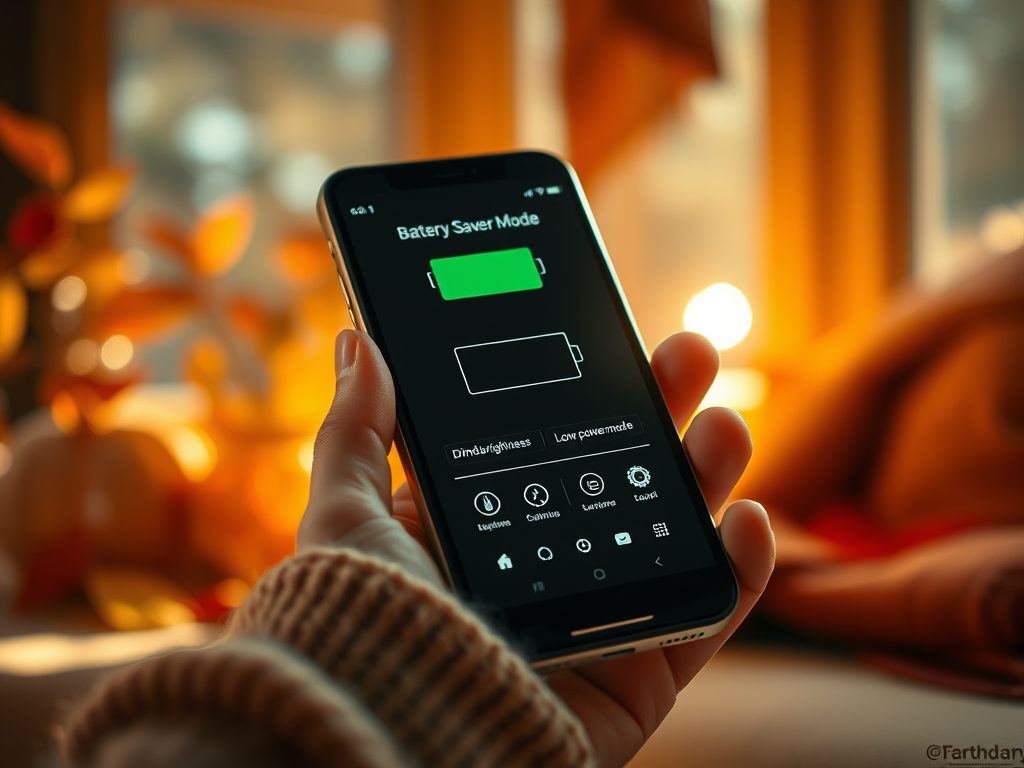
Both Apple and Google offer features that reduce energy usage with a single tap: iOS’s Low Power Mode and Android’s Battery Saver (also called Power Saving Mode on some Samsung phones).

When activated, these modes reduce screen brightness, pause certain background processes (such as photo backups), and limit app activities like mail fetching or automatic downloads. Your phone might also run slower due to reduced processor speeds.
To enable Low Power Mode on iOS, go to the phone’s Settings, tap Battery, and toggle the mode on. While this feature may automatically kick in when your battery is low, manually turning it on—right after charging—can help you get more usage between charges.
For Android users, the Battery menu typically offers both Standard and Extreme Battery Saver options, with the ability to schedule these modes for even more control over power consumption.
Monitoring Your Battery
Most phones provide battery health information in their settings, which can help you decide if it’s time to upgrade.
iOS shows battery level graphs and which apps are using the most power. The Battery Health & Charging screen indicates the maximum capacity of your battery, and less than 100% means it holds less charge than when it was new. Optimized Battery Charging is usually on by default, designed to extend battery life by reducing the time your phone stays fully charged.
Android devices also have battery usage data and a diagnostics tool to help identify battery issues. With Adaptive Battery, Android analyzes your phone usage and limits the power allocated to certain apps.

External Battery Packs
If your phone’s battery is on its last legs but you’re not ready to upgrade, investing in an external battery pack can help get you through the day. These come in various shapes and sizes, and once fully charged, they can provide a power boost to your phone.
Most portable power packs cost between $50 and $75, with enough capacity to recharge a phone multiple times. Wirecutter, owned by The New York Times, has recommended models like the Belkin BoostCharge Plus 10K.

Brands such as Zagg and ZeroLemon also offer small wireless chargers and battery cases that act as backup power sources, typically priced between $30 and $100.
Replacing the Battery
If you’re sticking with your current phone, replacing the battery is an option worth considering. Check with your manufacturer for authorized repairs, especially if your phone is still under warranty or insurance. Apple, Google, and Samsung all have information on their websites about battery replacement services for their devices.
For out-of-warranty phones, retailers like Best Buy, Staples, or uBreakiFix can replace the battery for under $100, sometimes while you wait.

If you’re feeling adventurous and on a tight budget, you can try replacing the battery yourself. The iFixit website has detailed guides for various phone models, and plenty of video tutorials are available online. Just make sure to back up your phone before you start, proceed carefully, and understand the risks—otherwise, you may end up needing to upgrade sooner than expected.




Leave a Reply